Want to turn a regular quiz into an exciting live game that students actually enjoy? Gimkit makes it simple, but only if you know the right steps. Many teachers struggle with the host screen, join codes, or settings the first time. This guide walks you through everything clearly so you can host a Gimkit game without stress.
I tested the full process multiple times on both free and Pro accounts. The steps below work on desktop, Chromebook, and most modern browsers in 2026.
What Does It Mean to Host a Gimkit Game?
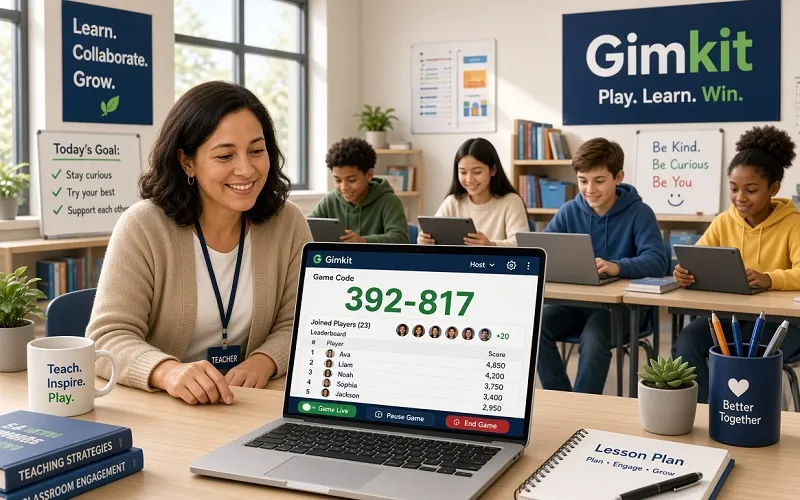
When you host a Gimkit game, you control the entire live session. You choose the question set (called a Kit), pick the game mode, set the rules, and share a join code or link with players. Students join from their devices, answer questions, earn virtual money, and compete in real time.
You stay on the host screen. From there you can watch the live leaderboard, pause the game, mute music, remove players, or end the session whenever you want.
How to Host a Gimkit Game – Exact Steps
Follow these steps carefully.
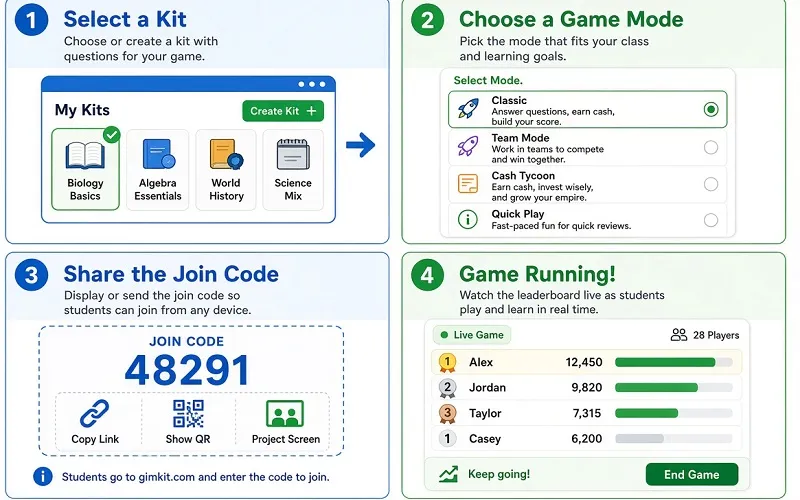
- Go to gimkit.com and log in with your teacher or free account.
- Click “Host Live Game” or the big “Host” button on your dashboard.
- Select a Kit. You can use one you already created, import questions, or pick a public Kit.
- Choose a game mode. Popular options include Classic, Team Mode, and The Floor is Lava.
- Adjust the game settings (more on this below).
- Click “Continue.” Gimkit now shows your unique game code and a join link.
- Share the code or link with your students. They go to gimkit.com/join and enter the code.
- When enough players have joined, click “Start Game.”
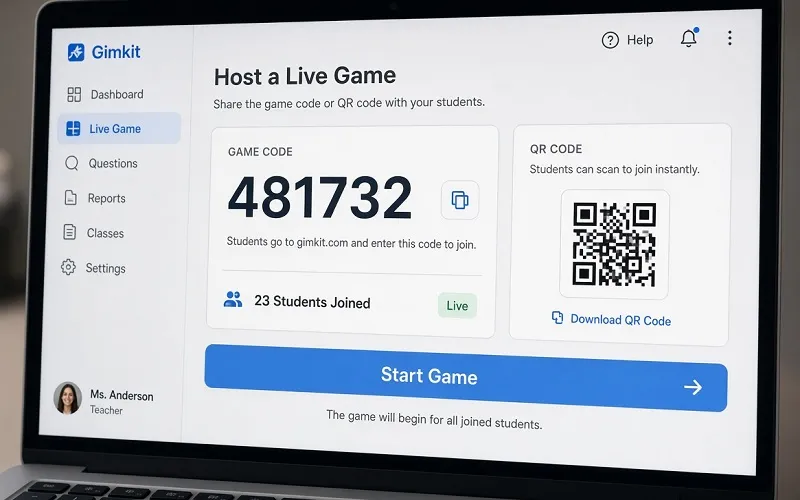
That’s it. Your Gimkit host screen is now live.
Best Settings for a Smooth Gimkit Host Session
After testing different classes, these settings work best for most groups:
- Game Goal: Set a cash goal (example: first to $50,000) or a time limit of 12–15 minutes.
- Late Join: Keep this on if students arrive late.
- Nickname Generator: Turn this on to avoid inappropriate names.
- Starting Cash: Give players $100 or $200 so they can buy power-ups early.
- Music & Sound Effects: Leave music on for energy, but turn off clapping if it gets distracting.
- Max Players: Stick to 30–40 for stable performance on school Wi-Fi.
These choices keep the game fun and under control.
How Students Join Your Gimkit Game
Students have three easy ways to join:
- Enter the 6-digit game code at gimkit.com/join
- Scan the QR code that appears on your host screen
- Click the direct join link you share
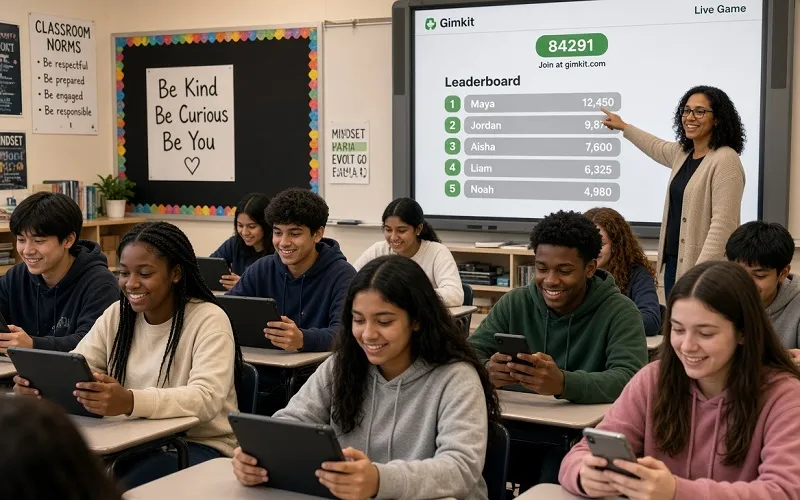
No student account is required. This makes hosting fast even with large classes.
Common Gimkit Host Problems and Quick Fixes
Here are the issues I ran into most often and how to solve them:
Problem: Students cannot join.
Fix: Double-check the code. Make sure they use gimkit.com/join (not the main site). Refresh the host screen and generate a new code if needed.
Problem: No sound or music.
Fix: Check the mute button on the host screen first. Then check your computer volume and the projector volume if you use one.
Problem: Game runs slowly or freezes.
Fix: Ask students to close other browser tabs. Lower the max player count. Use Chrome or Edge for the most stable experience.
Problem: Someone joins with a bad nickname.
Fix: Turn on the Nickname Generator before the next game. You can also remove individual players from the host panel.
Best Game Modes for Different Situations
- Classic Mode: Best for regular review. Simple and reliable.
- Team Mode: Great when you want collaboration.
- The Floor is Lava or similar fast modes: Perfect for short 8–10 minute energy boosts.
- Infinite Mode: Useful for longer practice sessions.
Try one new mode each week so the activity stays fresh.
Tips from Real Hosting Experience
- Always project the host screen so students can see the live leaderboard.
- Start with a short practice round if the class is new to Gimkit.
- Prepare your Kit the day before. Last-minute question edits cause stress.
- End the game a couple of minutes early so you have time to discuss the hardest questions.
- Save the post-game report. It shows which questions students missed most.
These small habits make every Gimkit host session smoother.
FAQs
Do I need a paid Gimkit account to host?
No. You can host on the free plan. Pro gives more modes and higher player limits.
How many students can join one game?
The free plan supports solid class sizes. Pro allows larger groups (officially up to several hundred, though real-world performance depends on your internet).
Can I join the game as a player while hosting?
Yes. In some modes you can join as a player or spectator from the host panel.
What happens if I refresh the page while hosting?
You may lose the current session. Avoid refreshing once the game has started.
Final Thoughts
Hosting a Gimkit game becomes easy once you follow a clear process. Create or choose your Kit, set sensible rules, share the code, and start. The platform rewards preparation and simple settings more than complicated options.
Use this guide the next time you want to host Gimkit. You will spend less time figuring out the screen and more time watching students stay engaged.
If any step looks different on your account after a platform update, the core process stays the same: select Kit → choose mode → share code → start game.
Disclaimer / Author Note:
This complete guide is based on multiple hands-on tests of Gimkit in real live sessions with different group sizes. Steps, buttons, and features can change when Gimkit releases updates.
Written by Kaif, who regularly tests education tools, gaming platforms, and classroom software to give clear, practical advice based on actual use rather than theory.